Downloads
Dear user, the RBIPUSH software has now been re-configured – and will now enable you to receive notifications as before.
Section I: Existing users who were downloading notifications before
ALL EXISTING USERS ARE KINDLY REQUESTED TO DOWNLOAD THE NEW SOFTWARE.PLEASE NOTE THAT THE OLD SOFTWARE WILL NO LONGER WORK.
Please follow the step by step instructions given below to uninstall the
older version and install the new version.
Step 1: Uninstall the existing RBIPUSH
software.
Uninstallation procedure:
| 1 | Click the RBIPush icon in system tray and select Uninstall |
| 2 | In Confirmation dialog box, click Yes to uninstall. |
| 3 | You will find that RBIPush icon has been removed from system tray. |
| 4 | Open Windows Explorer and delete the folder C:\RBIPush. If you had installed this software from a different directory, then please navigate to the same directory and delete its contents |
Step 2: Download the new RBIPUSH Software.
Click on the link below to download the software
RBI
Push (Version: 2.0) 
The downloaded file is in compressed format and contains 2 files: Uninstall.exe
and RBIPush.exe. Please follow the installation procedure given below.
Now RBI Notifications released on RBI site can be automatically downloaded.
RBI Push System helps user to automatically download all the new Notifications
that are released on the site. It will continuously monitor the Notifications
section of RBI website (URL is http://www.notifics.rbi.org.in/) for any new
releases. When a new notification is found it will notify the user immediately
and download the new notification automatically into the user's machine.
System requirements:
- Windows 98/NT/2000/XP
- Internet Explorer 5+
- Internet connectivity
Step 3: Install the downloaded software
Installation procedure:
- Start Windows Explorer and create a folder called RBIPush in C:\
- Copy the downloaded software from directory where you had saved it earlier.
- If you haven’t downloaded the software yet, do so by clicking here rbipush.zip and save it in the folder C:\RBIPush.
- Extract the two files in RBIPush.zip (uninstall.exe and RBIPush.exe) in the same directory
- If the earlier version of RBIPush has been installed, first run unistall.exe.
- Then install the new version of RBIPush by running RBIPush.exe
- On successful installation, you will find an icon in the system tray.
- Configure the software. For instructions on Configuration, refer section III - Configuring the RBIPUSH software.
Section II: New users who want to receive notifications
Please follow the step by step instructions given below to install the software and receive the notifications.
Step 1. Download the latest version
Click on the link below to download the software
RBI
Push (Version: 2.0)
The downloaded file is in compressed format and contains 2 files: Uninstall.exe
and RBIPush.exe. Please follow the installation procedure given below.
Now RBI Notifications released on RBI site can be automatically downloaded.
RBI Push System helps user to automatically download all the new Notifications
that are released on the site. It will continuously monitor the Notifications
section of RBI website (URL is http://www.notifics.rbi.org.in/) for any new
releases. When a new notification is found it will notify the user immediately
and download the new notification automatically into the user's machine.
System requirements:
- Windows 98/NT/2000/XP
- Internet Explorer 5+
- Internet connectivity
Step 3: Install the downloaded software
Installation procedure:
- Start Windows Explorer and create a folder called RBIPush in C:\
- Copy the downloaded software from directory where you had saved it earlier.
- If you haven’t downloaded the software yet, do so by clicking here rbipush.zip and save it in the folder C:\RBIPush.
- Extract the two files in RBIPush.zip (uninstall.exe and RBIPush.exe) in the same directory
- If the earlier version of RBIPush has been installed, first run unistall.exe.
- Then install the new version of RBIPush by running RBIPush.exe
- On successful installation, you will find an icon in the system tray.
- Configure the software. For instructions on Configuration, refer section III - Configuring the RBIPUSH software.
Section III: Configuring the RBIPUSH Software.
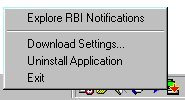
| Click on the RBI Push icon in the system tray and you get: |
 |
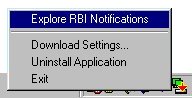
Explore RBI Notifications
| On clicking “Explore RBI Notifications”, a new window pops up containing all Notifications that have been downloaded. It will also contain the download date and time of the file. |
 |
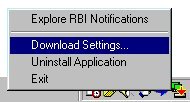
Download Settings
 |
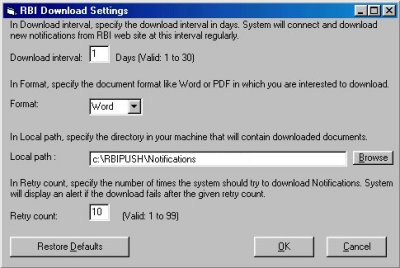 |
Under this, there are four settings that can be changed by the user.
| 1. | Download Interval:
The user will specify the download interval (in days). When connected,
new notification/s will be downloaded at intervals specified by the user. Min: 1 day and Max: 30 days Default : 1 day |
| 2. | Format: The format
of the file to be downloaded can be set by the user. Eg. If the format
is specified as PDF, then only PDF files of RBI Notifications will get
downloaded. Default: Word |
| 3. | Local path: The
local path can be set by the user or the default settings as remain as
it, if he had created a directory in drive C named rbipush. Default: c:\rbipush\notifications |
| 4. | Retry count: Under
retry count the user can enter the number of times the system should try
to download. An alert message will be displayed if retry exceeds the count
given. Default: 10 |
Uninstallation procedure:
| 5 | Click the RBIPush icon in system tray and select Uninstall |
| 6 | In Confirmation dialog box, click Yes to uninstall. |
| 7 | You will find that RBIPush icon has been removed from system tray. |
| 8 | Open Windows Explorer and delete the folder C:\RBIPush |